
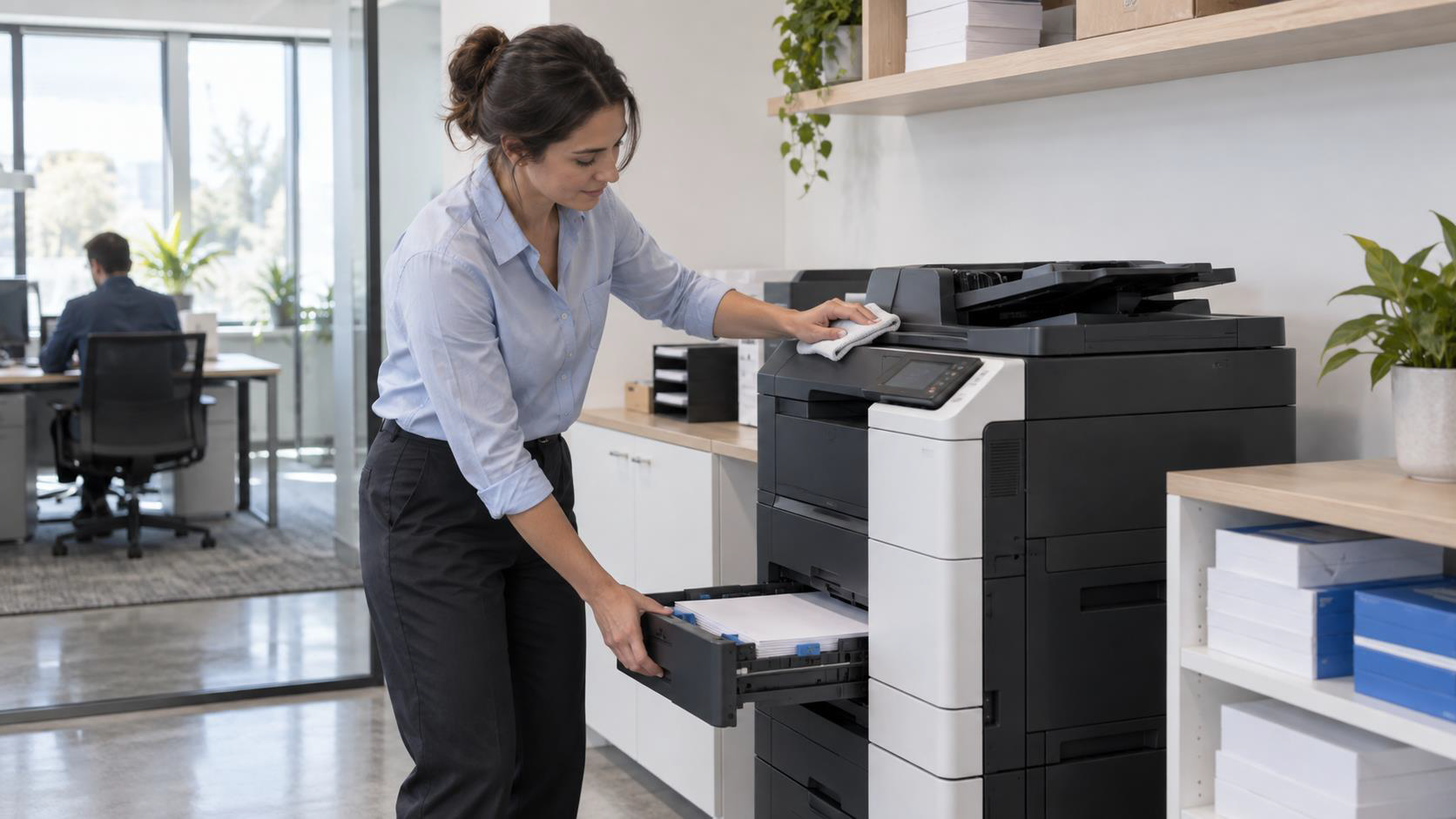
A dependable printer rarely attracts attention until it stops working.
A paper jam before a meeting, faded pages in a client packet, or an error message during a busy afternoon can interrupt more than one person.
Repeated problems can also consume paper, toner, and valuable staff time.
Printer maintenance does not need to be complicated. A consistent routine can protect print quality, extend the useful life of the equipment, and make monthly operating costs more predictable.
Put the Printer in a Suitable Location
Maintenance starts with placement.
A printer positioned in a dusty storage area, beside a heating vent, or in direct sunlight may require more frequent cleaning and service. Heat, moisture, and restricted airflow can affect internal components.
Place the machine on a stable, level surface with room for ventilation.
Employees should be able to open paper trays and access panels without moving the equipment.
Keep the area around the printer clear so paper, supplies, and finished documents do not block vents or collect dust.
Keep Exterior Surfaces and Accessible Areas Clean
Dust, paper fibers, and toner residue build up over time.
That buildup can interfere with sensors, rollers, and paper movement.
- Turn off and unplug the printer before cleaning.
- Allow hot components to cool before handling the equipment.
- Use a soft, lint-free cloth on exterior surfaces.
- Clean scanner glass with a product and method approved by the manufacturer.
- Never spray liquid directly onto the equipment.
Internal cleaning should follow the user manual. If a component is difficult to reach or requires disassembly, leave it to a trained technician.
Routine care should reduce risk, not create another problem.
Use Paper That Matches the Equipment
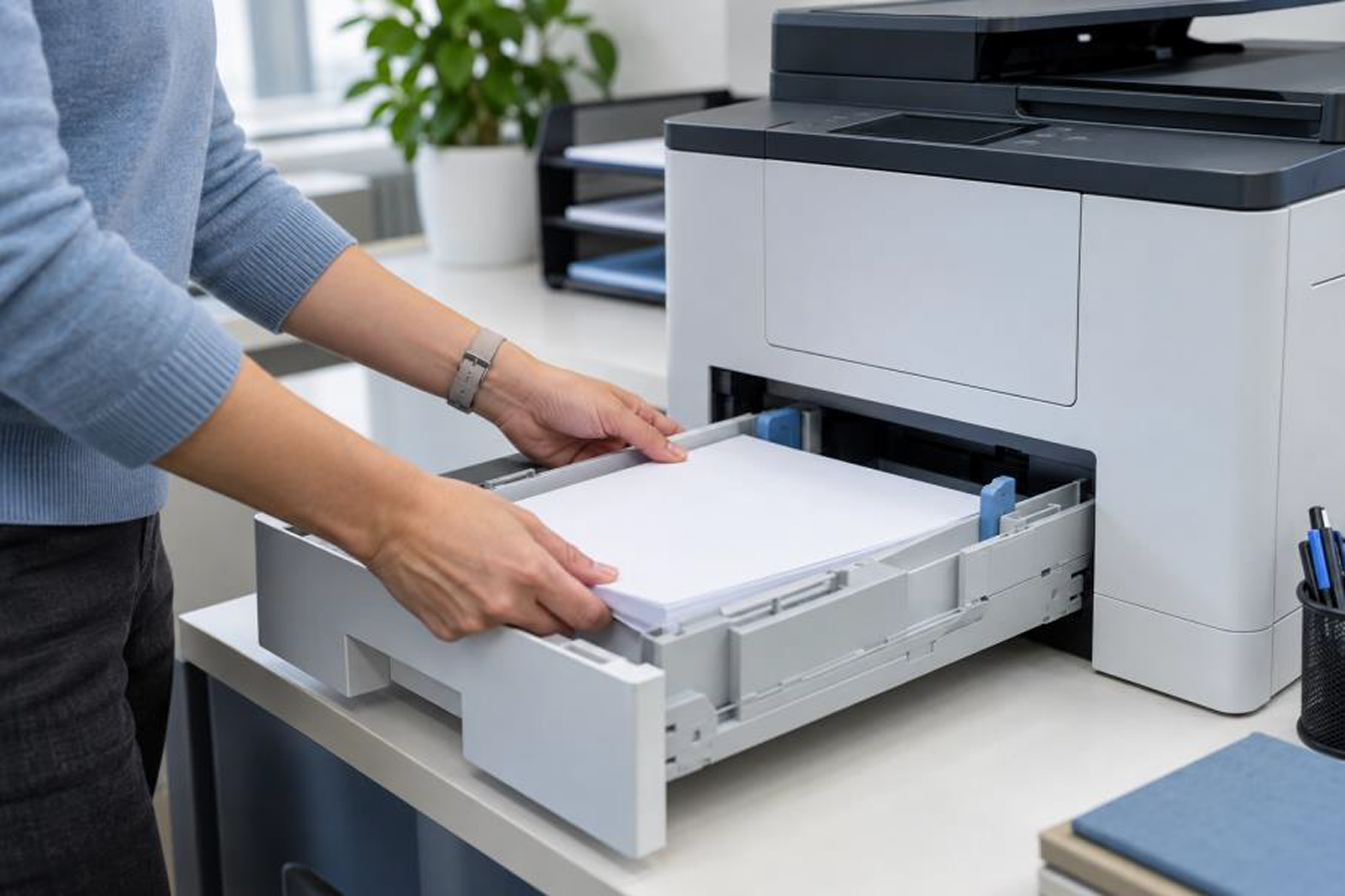
Suitable paper and correctly adjusted tray guides reduce feeding problems.
Paper condition has a direct effect on printer performance. Damp, curled, dusty, or incompatible sheets can cause jams and inconsistent output.
Replace Supplies Before Quality Declines
Low toner or ink can produce faded text, uneven coverage, and missing sections.
Reprinting those pages wastes supplies and delays the work.
Monitor supply levels through the printer display or management software.
- Keep a sensible backup for essential machines.
- Avoid storing more cartridges than the office is likely to use.
- Keep supplies sealed and stored according to the manufacturer's instructions.
Cartridges are not the only components that wear out.
Replacing components when recommended can prevent print defects and more expensive repairs.
Clear Paper Jams Carefully
Pulling jammed paper quickly can tear the sheet and leave scraps inside the machine. It can also damage rollers or guides.
Follow the instructions on the printer display or in the manual.
Remove paper slowly in the indicated direction and check the full paper path for remaining pieces before closing the access panels.
If the same jam returns, inspect the paper condition, tray guides, and rollers rather than repeating the same steps.
Frequent jams usually point to an underlying issue. Early service may prevent a minor feeding problem from becoming a longer outage.
Review Software and Print Settings
Printer care includes the software that controls the device.
Manufacturers may release firmware and driver updates that improve performance, compatibility, or security.
Assign responsibility for reviewing updates and managing printer settings.
These settings can reduce unnecessary supply use while leaving employees free to select color or higher resolution when the document requires it.
Pay Attention to Early Warning Signs
Printers often show signs of wear before they fail.
Record the error message, affected tray, print defect, and circumstances when the problem occurred.
Clear information helps a technician diagnose the issue faster.
Employees should also know which basic steps they may perform and whom to contact when those steps do not solve the problem.
Track Use and Service History
A simple service record can show whether a printer is reliable, costly to operate, or poorly matched to its workload.
Track the following for each machine:
- Page counts
- Supply replacements
- Service dates
- Recurring problems
Usage information helps the office choose equipment based on actual demand instead of assumptions.
Know When to Call a Technician
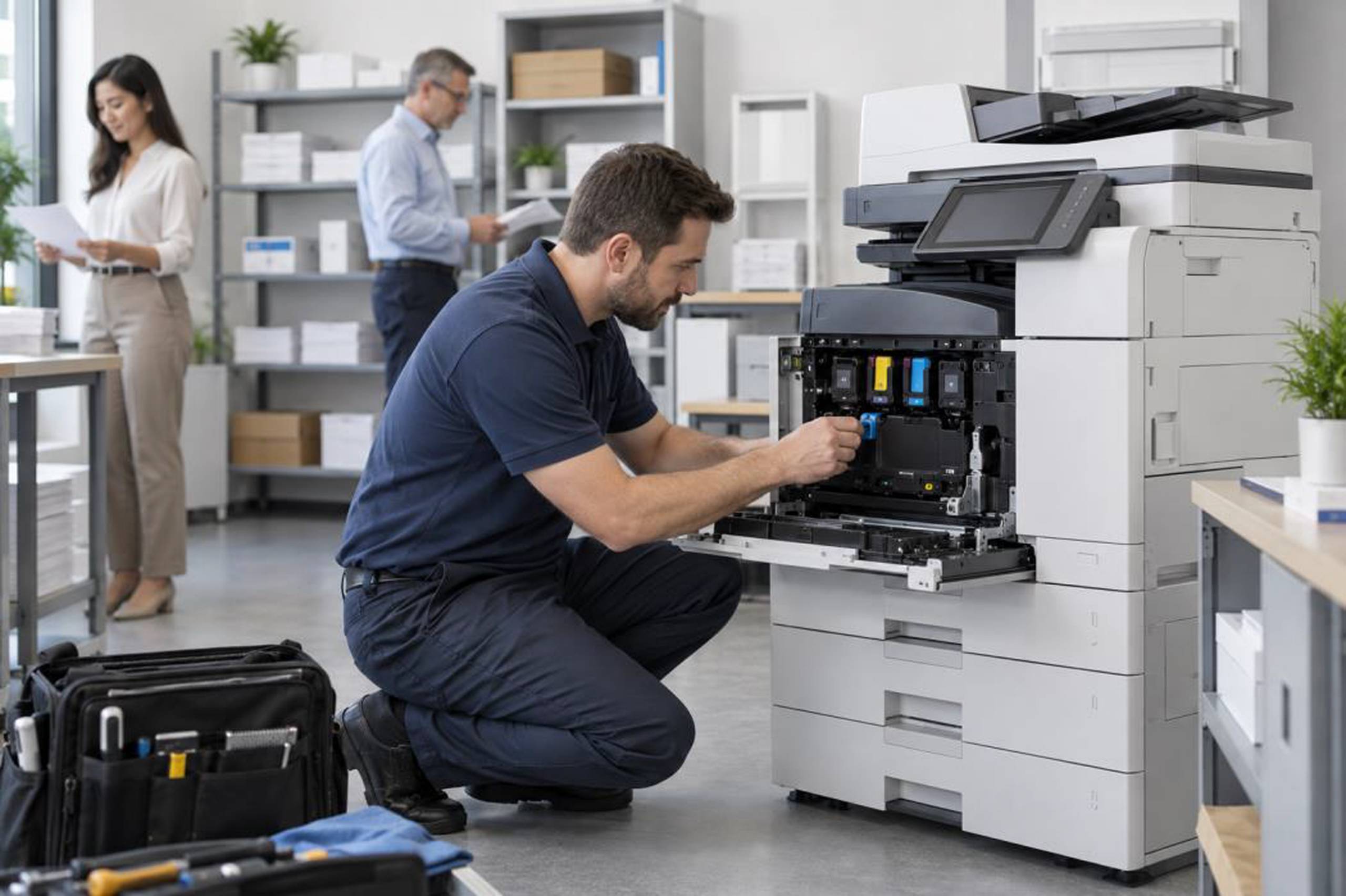
Basic cleaning, paper replacement, and approved troubleshooting can resolve many everyday issues.
Internal repairs are different. Printer components may be hot, electrically sensitive, or easy to damage.
Arrange professional service when the printer has:
- Repeated errors
- Damaged parts
- Unusual odors or sounds
- Persistent print defects
- Problems that continue after approved steps
Prompt attention can reduce downtime and keep one worn component from affecting another.
Build Maintenance Into the Office Routine
A practical maintenance schedule can be brief.
Check paper and supply levels.
Clean exterior surfaces and scanner glass.
Review usage and service records.
Schedule professional maintenance according to print volume and manufacturer recommendations.
Assigning responsibility matters. When everyone assumes someone else is checking the printer, small problems can remain unnoticed until work stops.
Keep Your Office Printing Reliable
Printer maintenance does not have to be complicated.
Simple cleaning, suitable paper and supplies, regular monitoring, and timely professional service can help keep office printers reliable.
Tracking usage and service history can also help businesses understand whether their equipment is reliable, costly to operate, or properly matched to its workload.
Office Solutions can help your business select suitable printing equipment and supplies, plan preventive service, and manage day-to-day print needs.
Contact our team to discuss a printer maintenance approach that fits your workplace.
Keep Your Printers Running Reliably
Contact Office Solutions to discuss printer maintenance, supplies, equipment, and preventive service for your workplace.
Contact Us Today